
Chromecast IPTV: How to Watch IPTV on Chromecast in Norway
Chromecast IPTV is a convenient way to watch internet-based television on your TV using Google's streaming devices. Instead of watching everything on a phone or computer, you can stream compatible IPTV content to a larger screen and enjoy your favourite entertainment from your living room.
For viewers in Norway, Chromecast can be useful for accessing Norwegian television, Nordic entertainment, international channels, sports and on-demand content through compatible IPTV applications and services.
However, the setup depends on which Chromecast device you own. Older Chromecast models mainly receive content cast from another device, while Chromecast with Google TV allows you to install compatible applications directly.
In this guide, you will learn how Chromecast IPTV works, which applications you can use, how to configure an IPTV subscription and how to fix common streaming problems.
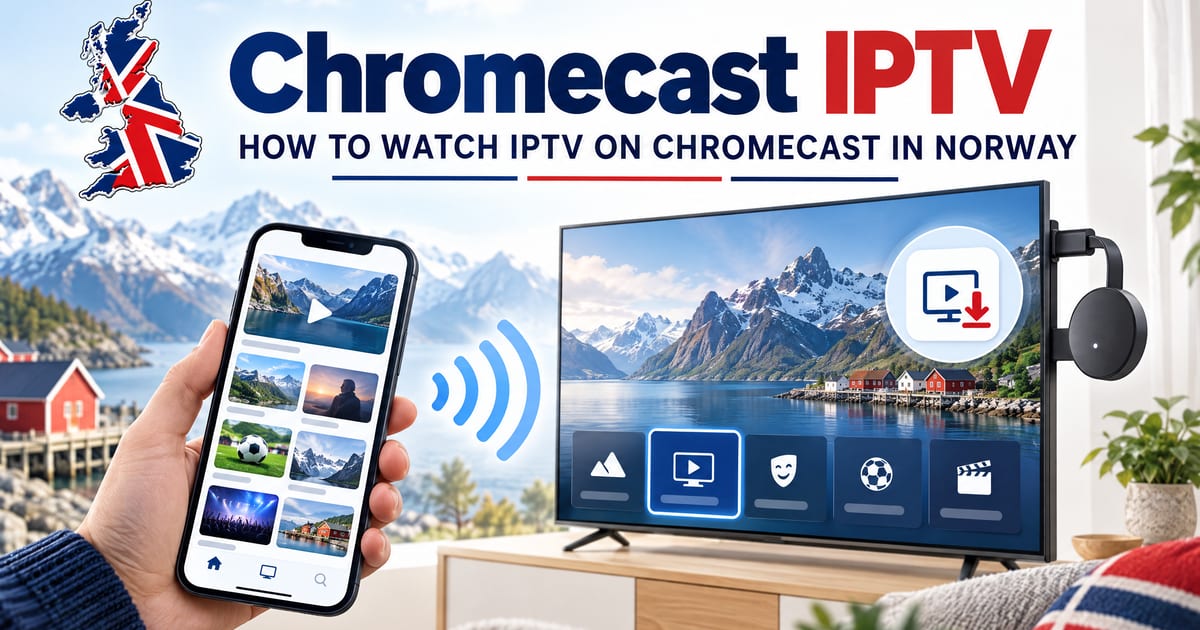
What Is Chromecast IPTV?
Chromecast IPTV refers to watching Internet Protocol Television through a Google Chromecast device. IPTV delivers television content over an internet connection rather than relying exclusively on traditional cable or satellite television.
Casting
Play IPTV content on your smartphone or computer and send it wirelessly to your Chromecast.
Direct Installation
Install a compatible IPTV application directly on Chromecast with Google TV from the Play Store.
You will generally need a stable internet connection, a compatible IPTV player and valid subscription or playlist details from a service that has the necessary content distribution rights.
Which Chromecast Devices Support IPTV?
Not every Chromecast device works in the same way. Understanding the difference will help you choose the correct installation method.
| Chromecast Device | IPTV Setup Method | Experience |
|---|---|---|
| Chromecast (1st, 2nd and 3rd Gen) | Cast compatible content from another device | Older Model |
| Chromecast Ultra | Cast compatible content from another device | 4K Cast Model |
| Chromecast with Google TV (HD) | Install compatible Android TV applications directly | Recommended |
| Chromecast with Google TV (4K) | Install compatible Android TV applications directly | Best for 4K |
Older Chromecast models do not have the same application installation experience as Chromecast with Google TV. You normally need to use a supported casting application on your phone, tablet or computer. For direct IPTV application installation, Chromecast with Google TV is generally the more flexible option.
Best IPTV Apps for Chromecast
Choosing the right IPTV player is an important part of setting up Chromecast IPTV. Different applications support different playlist formats, interfaces and devices.
| IPTV Player | Main Use | Compatibility |
|---|---|---|
TiviMatePopular | IPTV playlist management and live TV interface | Android TV and Google TV |
IPTV SmartersPopular | IPTV playback using supported login formats | Supported Android and other platforms |
VLC Media Player | Playing compatible network streams and playlists | Android and other supported platforms |
Kodi | Media playback with compatible IPTV add-ons | Android TV and other platforms |
Televizo | IPTV playlist management | Compatible Android devices |
Important: An IPTV player is not an IPTV subscription. It provides the interface for playing content from a compatible source. You need a valid playlist or subscription separately. Check the Google Play Store on your Chromecast with Google TV to confirm app availability.
How to Set Up IPTV on Chromecast with Google TV
If you have Chromecast with Google TV, you can install a compatible IPTV player directly on your device. Follow these steps:
Step 1: Connect Your Chromecast
Connect your Chromecast with Google TV to your television's HDMI port and switch to the correct HDMI input. Complete the initial setup, connect to your Wi-Fi network and sign in with your Google account.
Step 2: Open Google Play Store
From the Google TV home screen, open the Apps section and access Google Play Store. Search for a compatible IPTV player, such as TiviMate or another supported application.
Step 3: Install an IPTV Player
Select the application you want to use and install it. Make sure you download the genuine application from its official listing. Avoid unknown downloads or modified application files.
Step 4: Add Your IPTV Subscription
Open the IPTV player and enter your details: M3U playlist URL, Xtream Codes username, password, and server URL supplied by your IPTV provider.
Step 5: Load Your Channels
After entering the correct information, allow the application to process your playlist. You will see categories such as live television, sports, movies, series and EPG.
Step 6: Start Watching
Select an available channel or on-demand title and check playback. If content does not load, verify your login details and connection.
How to Use IPTV on Older Chromecast Devices
If you have an older Chromecast without Google TV, you generally cannot install an IPTV application directly on the device. Instead, you cast content from a smartphone, tablet or computer.
Using an Android Phone
- Connect phone and Chromecast to the same Wi-Fi.
- Install a compatible IPTV player on your phone.
- Configure using valid subscription details.
- Open a channel or video and tap the Cast icon.
- Select your Chromecast device.
Using an iPhone or iPad
- Connect iOS device to the same Wi-Fi as Chromecast.
- Install a compatible IPTV app supporting Cast.
- Add your playlist or login credentials.
- Select the Cast icon and choose Chromecast.
- Ensure your player supports Google Cast.
Using Windows or Mac
- Open Google Chrome on PC or Mac.
- Connect computer to the same Wi-Fi.
- Open the web player or streaming stream.
- Click Chrome menu > Cast > select Chromecast.
- Works for websites supporting web casting.
M3U Playlist and Xtream Codes on Chromecast
Many IPTV applications support different methods of connecting to an IPTV service. Two common options are M3U playlists and Xtream Codes.
What Is an M3U IPTV Playlist?
An M3U playlist is a file or URL containing references to media streams and related information. You paste the URL provided by your service and allow the player to load available channels.
What Are Xtream Codes?
Xtream Codes is a login method supported by many IPTV players. Instead of entering a long URL, you input Username, Password, and Server/Portal URL for organized VOD and live categories.
| Feature | M3U Playlist | Xtream Codes |
|---|---|---|
| Setup | Add playlist URL | Enter login details |
| Credentials | Usually a playlist URL | Username, password and server |
| Compatibility | Depends on player | Depends on player |
| EPG | Depends on playlist and player | Depends on service and player |
Use whichever connection method your provider supports. Both methods require a valid source and a compatible IPTV application.
How to Improve Chromecast IPTV Streaming Quality
Buffering and playback interruptions can make watching television frustrating. A few adjustments can help improve your experience.
Use a Stable Internet Connection
A reliable connection is essential for HD and 4K playback. Place your Wi-Fi router closer to your Chromecast or consider an Ethernet adapter.
Choose the Correct Streaming Quality
Not every channel is in 4K. Select a resolution supported by the source stream, your television and your network speed.
Restart Chromecast Regularly
If the IPTV app becomes sluggish, restart Chromecast from Settings to clear cached memory and resolve temporary software issues.
Update Your IPTV Player
Check Google Play Store for player updates to get the latest bug fixes, video codec support, and performance optimizations.
Avoid Network Congestion
Pause heavy downloads, cloud backups or torrents on other household devices while streaming live sports or movies.
Common Chromecast IPTV Problems and Their Fixes
Here are common problems users may experience when setting up IPTV on Chromecast and how to resolve them quickly.
| Problem | Possible Solution |
|---|---|
| IPTV channels not loading | Check your playlist and subscription status |
| Buffering during playback | Improve Wi-Fi stability and reduce network congestion |
| IPTV app not installing | Check device compatibility and available storage |
| Chromecast not appearing | Connect both devices to the same Wi-Fi network |
| Black screen | Restart the application and check stream availability |
| Login failed | Verify username, password and server address |
| Casting not working | Confirm that the application supports Google Cast |
| EPG not loading | Check the EPG source and application settings |
If the issue continues, contact your IPTV provider or application developer, depending on whether the problem relates to the subscription or the player.
Is Chromecast Good for IPTV in Norway?
Chromecast can be a practical option for Norwegian viewers who want to watch compatible IPTV content on a television.
With Chromecast with Google TV, you can install supported applications directly. Older Chromecast devices can also be useful when your IPTV application supports casting from a phone or computer.
For viewers interested in norsk IPTV, Nordic entertainment and international programming, the most important step is selecting a service with the channels you want and the appropriate distribution rights. Before choosing a subscription, check the supported devices, available content, connection requirements and renewal conditions.
Why Consider IPTV Norwegian for Chromecast IPTV?
If you are looking for an IPTV subscription to use with a compatible Chromecast setup, IPTV Norwegian is worth exploring.
The platform offers different subscription durations for viewers interested in live television and digital entertainment through supported IPTV applications and devices. Before subscribing, check the current channel selection, Chromecast compatibility through your chosen IPTV player, subscription features and service terms.
What to Check Before Choosing a Plan
IPTV Norwegian offers monthly, quarterly, six-month and annual subscription options. You can compare the available plans and select one that matches your requirements.
Ready to explore IPTV in Norway?
Visit IPTV Norwegian to view available plans and check whether they suit your Chromecast setup.
Frequently Asked Questions
Everything you need to know about setting up and streaming IPTV on Google Chromecast.